

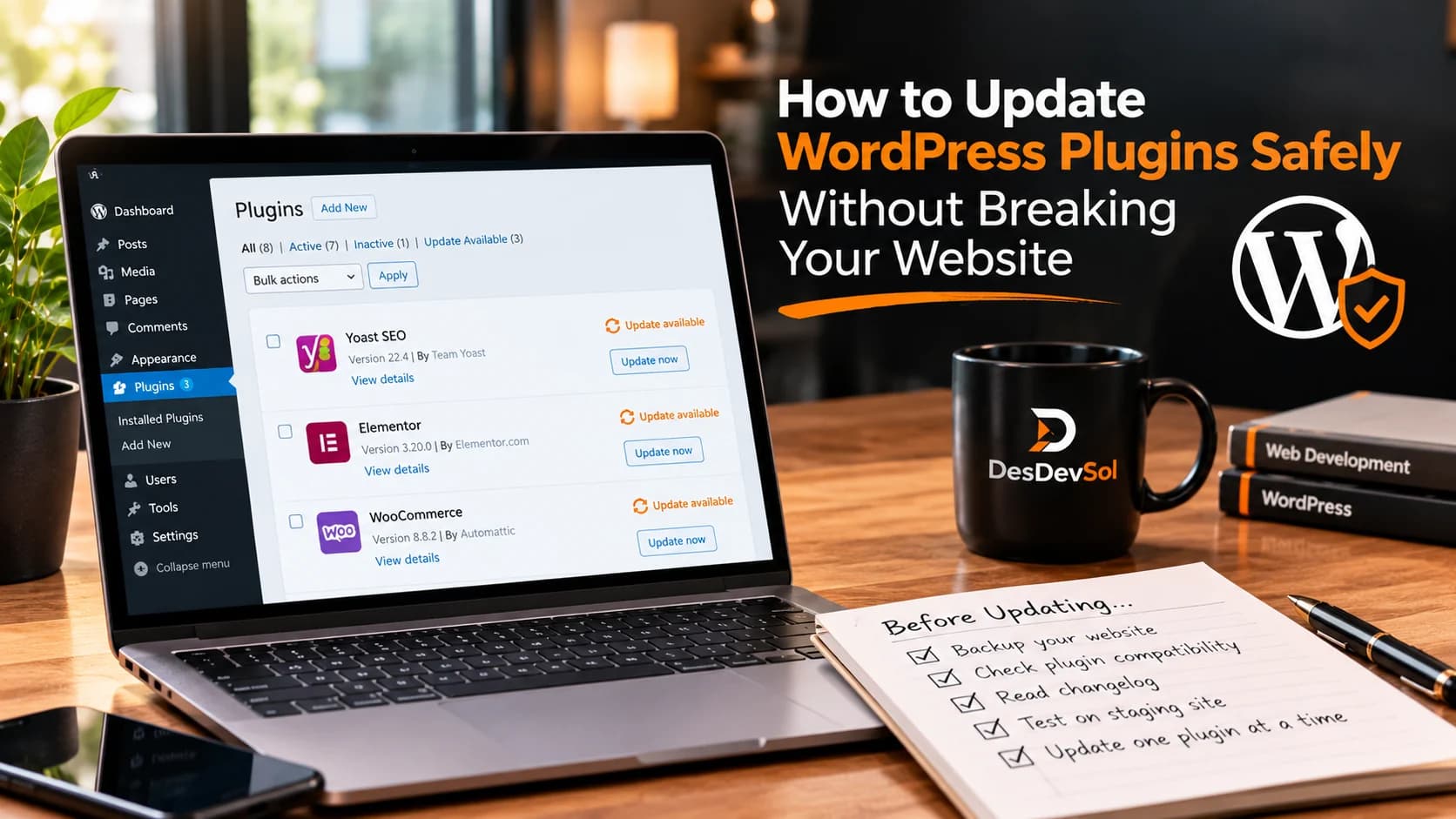
Knowing how to update WordPress plugins safely helps you keep a website secure without turning routine maintenance into an unexpected outage. An update may fix a vulnerability or a bug, but it can also conflict with your theme, another plugin, or custom functionality. A short, repeatable process makes those risks easier to manage.
You do not need a complicated release system for every small website. You do need a recent backup, a way to check compatibility, a plan for testing important journeys, and enough time to respond if something goes wrong.
1. Check what the update changes
Before clicking Update, read the plugin’s release notes and check which version is being installed. Look for security fixes, compatibility notes, database changes, removed features, or instructions that require another step. If the plugin powers payments, forms, memberships, search, or shipping, treat the change as more consequential than a minor display widget.
Check whether the plugin supports your current WordPress version and whether it has known requirements for your PHP version or related plugins. The official WordPress plugin management documentation explains where to review compatibility information and update details.
If the update notes are unclear, the plugin has not been maintained for a long time, or the change affects a critical business feature, pause and investigate before updating the live site.
2. Create a usable backup first
Make sure you have a recent backup of both the website files and the database. Files contain themes, plugins, uploads, and other site assets; the database holds content, settings, orders, and other changing records. A copy of only one may not be enough to restore the site properly.
Check when the backup completed and where it is stored. For an online store or membership site, consider how you would protect new orders, customer changes, or registrations created after the backup. Restoring an old database without a plan can replace valid recent activity.
A backup is useful only if you know how to restore it. For higher-risk updates, confirm that your hosting provider or maintenance process can restore the relevant files and database, and know who is responsible for doing it.
3. Test higher-risk updates on a staging site
A staging site is a private copy of your website where you can test changes before applying them to visitors. Use it for major plugin versions, theme changes, ecommerce updates, and plugins that interact with custom code or several other systems.
Refresh staging from a recent production copy when appropriate, but protect personal information and prevent test emails, payments, or fulfilment actions from reaching real customers. Confirm that the staging environment uses compatible software settings; a test on a very different setup may miss the problem you need to catch.
Install the update on staging and test the functions the plugin supports. If the update changes a contact form, submit a test entry. If it affects a store, test product pages, cart behaviour, checkout in a safe test mode, and order notifications. Do not assume that a successful update message means every customer journey still works.
4. Update in a controlled window
Choose a period when someone can check the site and respond to an issue. Avoid starting a high-impact update immediately before a launch, campaign, busy sales period, or planned absence.
For a site with several interconnected plugins, update in small groups or one at a time when the risk justifies it. This makes it easier to identify which change caused a problem. For a routine low-risk update, a broader batch may be reasonable if you have a current backup and can test the result.
Automatic updates can reduce the time software stays out of date, but they should fit your site's risk level and monitoring capacity. WordPress explains how plugin and theme auto-updates work and recommends having a way to return to a previous version if an update causes trouble in its auto-update guidance. For critical business functions, decide in advance how failures will be noticed and handled.
5. Run a post-update checklist
After the update, open the live site in a private browser window and test the functions that matter to the business. At minimum, check:
- Core pages: homepage, key landing pages, product or service pages, and navigation.
- Forms and accounts: form submission, login, password reset, and relevant confirmation messages.
- Revenue paths: add-to-cart, checkout, booking, payment, or enquiry flows, as applicable.
- Mobile layout: menus, buttons, forms, and content on a narrow screen.
- Errors and speed: visible warnings, broken images, unusual delays, and new errors in available logs or monitoring.
- Background work: scheduled jobs, notifications, integrations, or synchronisation tasks that the plugin supports.
Test the actual journey rather than only the page appearance. A checkout can look normal while an order notification fails, and a form can display correctly while its submission never reaches the business.
6. If the update breaks something
First, identify the symptoms and the time they began. Record the plugin name, old and new versions if known, the affected page, and any error message. Avoid making several unrelated changes at once; that can make the cause harder to find.
If the issue is serious, follow your rollback plan. Depending on the problem, that may mean restoring a verified backup or returning the affected plugin to a known working version. Use a trusted source for older software, and do not leave a security-sensitive component disabled longer than necessary. If customer data or transactions may be affected, preserve the relevant records and get technical help before restoring a database.
Once the site is stable, reproduce the problem on staging if possible, check compatibility notes, and decide whether to retry, choose a compatible alternative, or ask the plugin developer for guidance.
7. Keep a simple update log
A small maintenance log prevents guesswork the next time an issue appears. Record the date, plugin and version, backup reference, whether staging was used, the checks completed, and any follow-up work. Assign responsibility for updates and make sure someone receives failure notifications.
Review the process periodically. A business website with a few simple plugins may need a lightweight checklist; a store or customer portal needs more careful testing because a small fault can interrupt revenue or service.
When should you ask a developer?
Get help before a high-risk update if the plugin supports payments, customer accounts, custom integrations, or essential business workflows and you do not have a safe staging or recovery process. Also ask for help when updates repeatedly fail, compatibility is unclear, or the site shows errors you cannot diagnose.
A dependable maintenance routine balances timely security updates with testing and recovery. If you need help setting up that process, explore DesDevSol’s website maintenance and security services.