

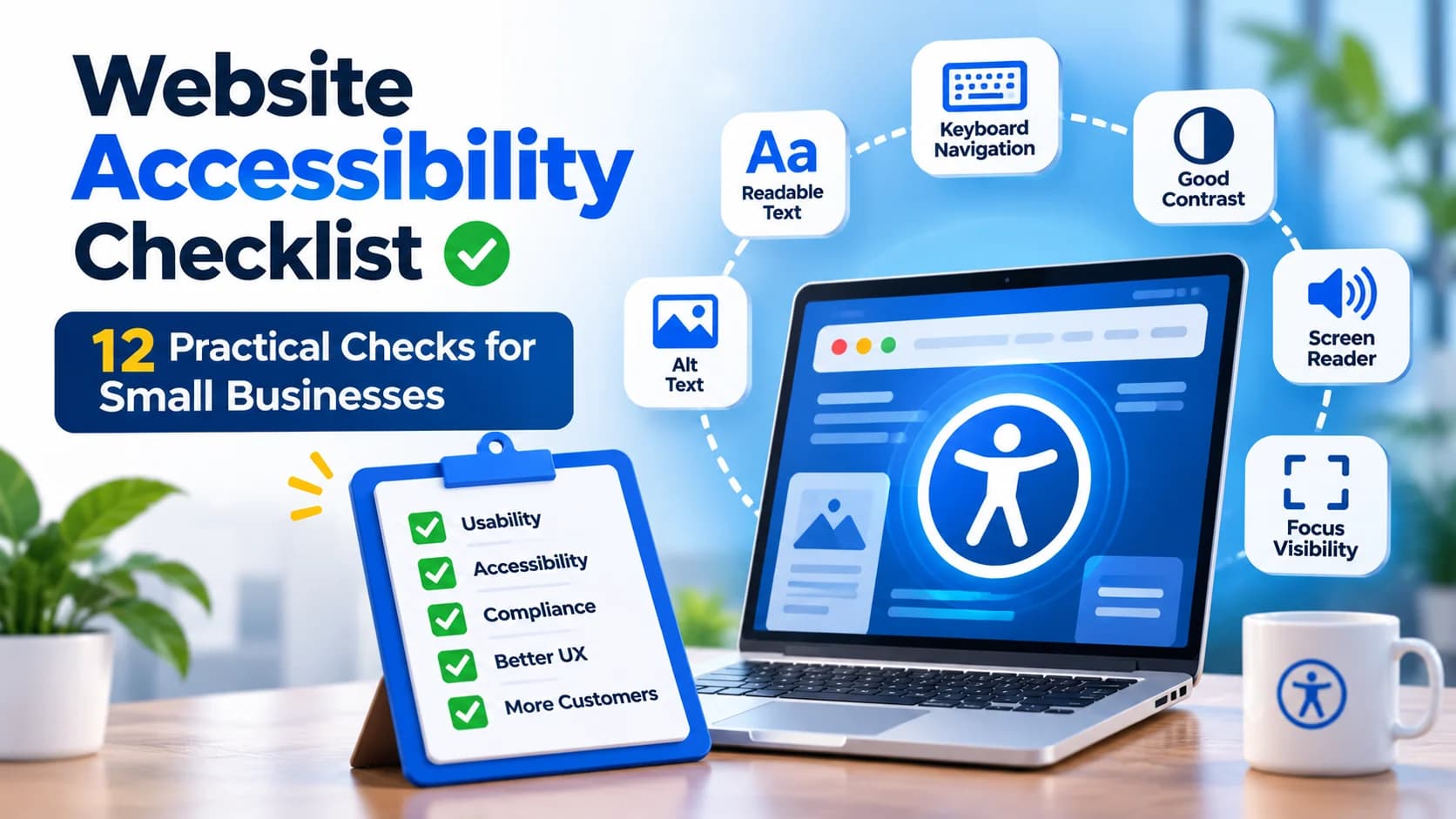
A website can look polished and still be difficult to use. A visitor may be unable to open a menu without a mouse, read pale text, understand a form error, or reach a button hidden behind a sticky banner. These are accessibility barriers—and they can also interrupt ordinary customer journeys.
This website accessibility checklist helps business owners and web teams perform a useful first review. It is based on WCAG 2.2 principles, but it is not a complete audit or a claim of legal compliance. Start with your homepage, a key service or product page, your contact form, and any checkout or account flow.
Start with the tasks your customers actually need to finish
Accessibility means people can perceive content, operate controls, understand what happens, and use the site with assistive technologies. Before testing individual components, choose a few real tasks: find a service, compare options, open navigation, submit an enquiry, and correct a form mistake.
If these journeys are confusing even before accessibility testing, a focused UI/UX design review can help simplify their structure and interactions.
12 practical accessibility checks for business websites
1. Give each page a clear title and meaningful headings
Page titles should describe what visitors will find. Headings should outline the content in a logical order, not merely decorate it. Use semantic heading elements, and check whether reading order still makes sense when desktop columns collapse on mobile.
Try this: Read only the headings on a service page. Can you understand its offer, benefits, and next step?
2. Write appropriate alternative text for images
Informative photos, diagrams, and charts need alternative text that conveys their purpose. Decorative images generally need an empty alt attribute. Image links need accessible names describing the destination or action rather than “image” or “click here.”
Try this: Imagine the images are unavailable. Would their text alternatives preserve the information? For sites with many editors, structured CMS fields and editorial workflows can help teams manage descriptions consistently.
3. Check contrast in text and important controls
Light gray text and subtle field borders can become hard to distinguish. WCAG 2.2 Level AA generally calls for at least 4.5:1 contrast for normal text and 3:1 for large text, with specified exceptions. Important non-text interface components have separate contrast considerations. Never communicate an error using color alone.
Try this: Test body copy, buttons, form boundaries, error messages, and text placed on photos with a contrast checker. Inspect interaction states as well as the default appearance.
4. Zoom and narrow the viewport
People enlarge text or browse on small screens. Check whether text can be resized to 200% without loss of content or functionality, and whether applicable layouts reflow at the equivalent of a 320-CSS-pixel-wide viewport. Watch for clipped text, off-screen buttons, overlapping labels, and unnecessary horizontal scrolling.
Try this: Zoom in and complete the contact journey again. A responsive screenshot is not enough if the controls stop working.
5. Complete important tasks without a mouse
Use Tab, Shift+Tab, Enter, Space, and arrow keys as appropriate. Can you open menus, move through dialogs, operate filters, submit forms, and leave every component without a keyboard trap? Focus order should follow a meaningful sequence.
Try this: Complete one entire enquiry or checkout using only the keyboard. Record the exact point where progress becomes difficult or impossible.
6. Make keyboard focus visible and unobstructed
Keyboard users need to know which control is active. Do not remove the focus outline unless you provide a clearly visible alternative. Under WCAG 2.2 Level AA, author-created content such as sticky headers and banners must not entirely obscure the focused component.
Try this: Tab through a long page. Check whether a fixed header, chat widget, or cookie banner hides the current focus position.
7. Give links and buttons clear purposes
“Read more” repeated on every card can be ambiguous. Descriptive link text helps visitors predict where they will go. Use links for navigation and buttons for actions; give icon-only controls accessible names, and make sure those names agree with visible labels.
Try this: Read the links out of context. Could you distinguish each destination? Then test menu, search, close, and cart icons with keyboard navigation.
8. Make small touch targets easier to use
Tiny close icons and tightly packed links are easy to tap accidentally. WCAG 2.2 Level AA generally requires pointer targets of at least 24 by 24 CSS pixels or adequate spacing, subject to defined exceptions. A larger comfortable target is often a better design choice; 24 pixels is not a universal recommendation.
Try this: On a phone, use pagination, filters, and dismiss buttons without zooming. Increase target size or spacing where needed.
9. Label forms and explain errors in words
Inputs need clear labels or accessible names. Placeholder text alone is not a dependable label. When a submission fails, identify the affected field, explain the problem in text, and give a practical correction. Avoid discarding valid information already entered.
Try this: Submit an empty contact form, then an invalid email address. Can someone find and correct each error with a keyboard and screen reader?
10. Add appropriate media alternatives
Prerecorded video with speech generally needs accurate captions. Audio-only and visually informative video content may require additional alternatives, depending on the content and applicable success criteria. A transcript is useful, but it does not automatically substitute for every caption or audio-description requirement.
Try this: Watch a product demonstration without sound. Then listen without looking. Identify information that disappears in either mode.
11. Offer alternatives to drag-only interactions
Reordering cards, dragging sliders, or dropping files can require precise pointer movement. WCAG 2.2 Level AA addresses dragging movements and calls for alternatives in applicable cases, with exceptions. Consider move-up/move-down controls or a standard file picker.
Try this: Attempt the interaction without dragging. Is there another way to achieve the same result?
12. Keep navigation and help predictable
Repeated navigation, search, and help features should behave consistently. Where WCAG's consistent-help criterion applies, keep help mechanisms in a consistent relative order across pages. Avoid unexpected page changes when a field receives focus or a selection changes.
Try this: Compare the homepage, service page, and contact form. Do familiar controls stay familiar, and can users anticipate the outcome of an action?
A one-hour accessibility review your team can repeat
Minutes 0–10: Choose three to five representative pages and write down their most important customer tasks.
Minutes 10–30: Test keyboard navigation, focus visibility, zoom, mobile controls, and form errors. These hands-on checks can reveal blockers that visual inspection misses.
Minutes 30–45: Review headings, alternative text, contrast, link purpose, and media. Run an automated checker for additional clues, but remember that a clean automated scan does not establish conformance.
Minutes 45–60: Log each issue with the affected page, reproduction steps, customer impact, proposed fix, and owner. The W3C's Easy Checks guide provides a useful first-review method and explains why broader testing is still necessary.
Fix the barriers that block customer journeys first
Prioritize issues by impact, not by how many automated warnings they generate. A checkout that cannot be completed by keyboard is more urgent than a minor cosmetic inconsistency. Next address recurring template problems, including low contrast, missing labels, and obscured focus. Finally improve content-entry practices and regression testing.
Write acceptance criteria in terms of user tasks: “A keyboard-only visitor can open the mobile menu, reach every item, close it, and return to the trigger.” This is easier to test than “improve accessibility.”
Accessibility is ongoing work. New banners, plugins, and content can reintroduce problems. Include the most important checks in a website maintenance routine. Speed is another part of the user experience; our Core Web Vitals guide covers performance checks separately.
Does passing this checklist mean a site is WCAG compliant?
No. These checks are a practical screening tool, not a full WCAG audit, certification, or legal opinion. Accessibility obligations depend on jurisdiction and context. The official WCAG 2.2 quick reference documents the applicable criteria, levels, techniques, and exceptions. A formal assessment requires systematic testing of representative pages, components, content, assistive technologies, and complete journeys.
Make your next website improvement easier for everyone
You do not have to rebuild an entire site to start removing barriers. Identify the journeys that matter, fix the obstacles that stop people completing them, and retest before every important release.
DesDevSol can help you review your current experience and plan practical improvements to layout, navigation, forms, and frontend behavior. Explore our website development service and share the pages or customer tasks you want to improve.