

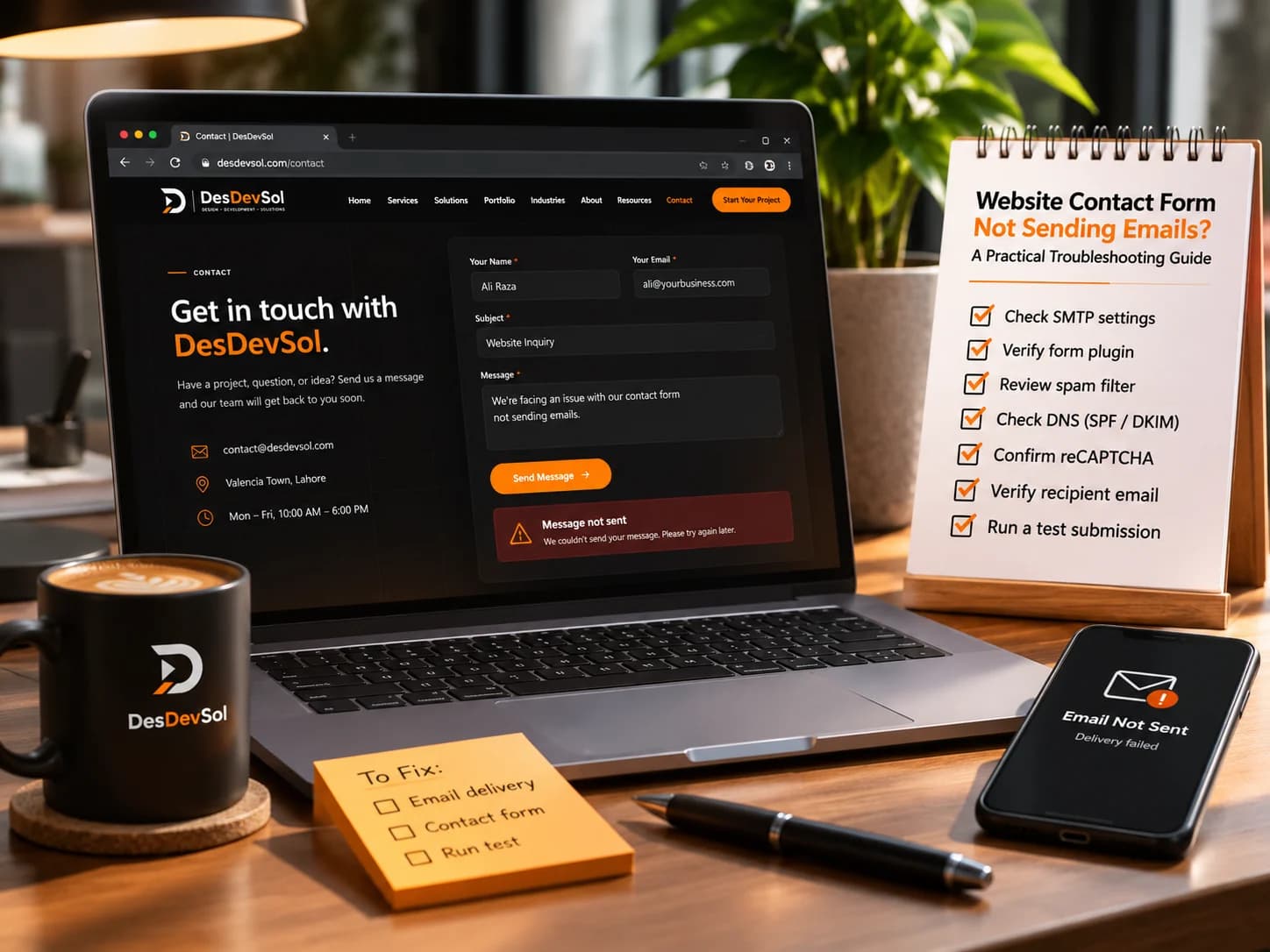
If your website contact form is not sending emails, first find out whether the form submission is failing or the notification email is getting lost. These are different problems, and checking them in the right order can save time. A visitor may see a success message while the notification is sent to the wrong address, filtered as spam, or never handed to an email service.
Use the checks below to trace the message from the form to the inbox. Before changing settings, send one clearly labelled test submission and note the time so you can compare it with any available submission or email logs.
1. Check whether the form submission was recorded
Submit the form yourself using a private browser window or another device. Complete every required field and check what happens after you select the submit button.
- If you see a validation error: correct the field it identifies. A required field, format rule, or script error may be preventing submission.
- If the page spins or shows a server error: the form may not be reaching its processing service. Check the form tool's error messages and recent site changes.
- If you see a success message: look for the test entry in the website platform's form-submission area, if it provides one.
A success message alone does not prove that an email was delivered. If the entry is stored, focus next on notifications and email delivery. If it is not stored, investigate the form's submission settings, integrations, and server-side errors first.
2. Verify the notification settings
Open the settings for the specific form and confirm that email notifications are enabled. Check the recipient address character by character, including spelling, punctuation, and the domain. If more than one person needs the enquiry, verify each recipient separately.
Also check whether the notification settings changed after a site update or form edit. In Webflow, for example, the form's notification recipient and processing destination affect where submissions go. Its official troubleshooting guide for missing form notifications explains how to check recipients, publishing, custom form actions, and stored submissions.
If the form sends data to a third-party service through a custom action or integration, do not assume the website platform will also send its own notification. Confirm which service is responsible for processing the entry and sending the message.
3. Check spam, filters, and mail rules
Search the recipient mailbox for the test subject or sender address. Check the spam or junk folder, quarantine area, archive, and any rules that automatically move or delete messages. If your business uses a shared inbox, check whether a teammate or an automation has already processed the message.
Ask the email administrator to review filtering logs if they are available. A message may be accepted by the receiving service but placed somewhere other than the main inbox. Add a sender to a safe-sender list only after verifying that it is legitimate and that doing so fits your organisation's security policy.
4. Confirm the sender address and email delivery method
Web forms often send notifications through the website host, the site platform, or a connected email provider. If that sending route is misconfigured or restricted, submissions can be recorded without a notification reaching you.
Check the form's sender address and reply-to address. The sender should normally be an address that the configured sending service is authorised to use. The visitor's email can usually be placed in the reply-to field, so staff can reply to the enquiry without making the message appear to come from an unauthorised address.
For WordPress.com sites, the platform documents how site-generated email is sent and when an external provider may be appropriate in its guide to sender addresses and SMTP options. The correct solution depends on the platform, plan, host, and mail provider; installing an SMTP plugin is not a universal fix for every form problem.
5. Review delivery logs and recent changes
If the platform stores form entries or email logs, compare them with the time of your test. Look for a rejected message, authentication error, sending limit, blocked sender, failed integration, or an empty notification recipient. Record the exact error rather than repeatedly changing settings without evidence.
Next, review recent changes that could affect the form:
- A form plugin, theme, or website platform update.
- A change to the recipient, sender, or reply-to address.
- A new spam filter, security rule, caching layer, or script.
- A change to the mail provider, domain DNS, or sending limits.
- A new webhook or CRM integration that now handles submissions.
If the issue started immediately after a change, test that component in a controlled way. Avoid disabling security protections across the live site as a first step. Where possible, reproduce the problem on a staging copy and change one variable at a time.
6. Test the full journey on desktop and mobile
Once you have corrected the likely cause, submit a fresh test from the published page on both desktop and mobile. Confirm three separate outcomes: the visitor can submit the form, the entry is recorded where expected, and the right recipient receives the notification.
Check the confirmation message as well. It should tell visitors whether their message was received and what to do if they do not hear back. Keep a separate contact method visible on the page so a broken form does not become a dead end.
7. Prevent the same problem from going unnoticed
- Schedule a simple form test after major site, plugin, or email changes.
- Enable submission storage or logging where your platform supports it and where it is appropriate for your data-retention policy.
- Send notifications to a monitored business inbox rather than an address no one checks.
- Document the form's recipient, sender, delivery service, and integration owner.
- Keep spam protection active, but periodically verify that legitimate enquiries still get through.
Collect only the personal information you need, limit access to stored enquiries, and set a sensible retention period. Reliable notifications should not come at the expense of visitor privacy.
When to ask for technical help
Bring in a developer or hosting/email administrator if submissions are not being recorded, logs show repeated delivery errors, a custom integration fails, or the problem continues after the basic checks. Share the test time, the exact error, the form URL, and what you verified. Do not send passwords or private customer data in a support request.
If your contact form is an important source of enquiries, website development and troubleshooting support can help you trace the submission path and make the form easier to monitor.